
Voicemail Setup Guide
Set up voicemail on your PBXme account — upload your greeting and link it to a phone (SIP) line so callers can leave you messages when you’re unavailable.
Step 1: Upload Your Voicemail Greeting
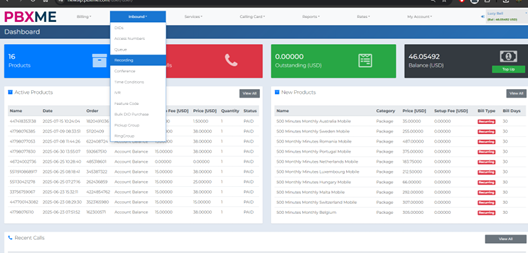
| 1 | After logging in, hover over Inbound in the top menu, then click Recording from the dropdown.
|
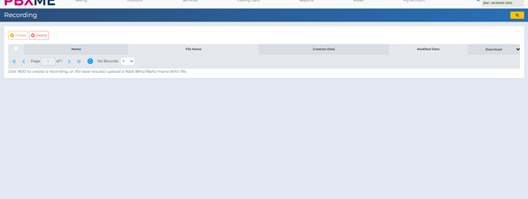
| 2 | On the recording page, click the orange Create button to upload your voicemail greeting. You can also create a recording by calling 1800 from any SIP device you’re registered to. For best results, upload a WAV file. |
| 3 | Make sure your audio file is in WAV format, 16-bit mono, 8kHz or 16kHz — this ensures the best compatibility with the system.
|
Step 2: Link Your Greeting to a SIP Line (Phone)
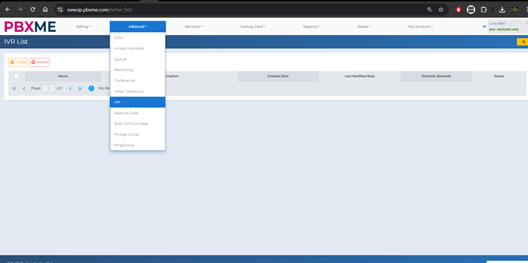
| 4 | Go to the My Account menu and click SIP Devices.
|
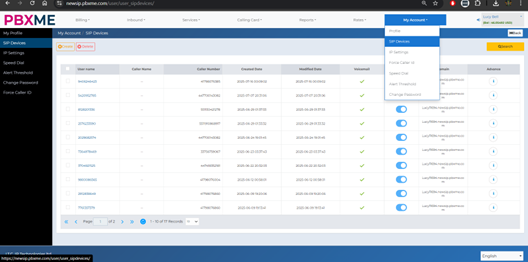
| 5 | You’ll see a list of all your SIP devices (phones or virtual lines). Click the small edit icon next to the device you want to set up voicemail for.
|
| 6 | A popup window will appear. On the right side, look for Voicemail Options and fill in the following fields:
|
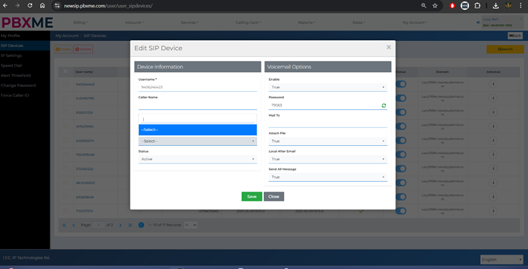
| 7 | Click the green Save button. That’s it! |
Things to Remember
- You can reuse the same voicemail greeting across multiple SIP devices.
- If you don’t enter an email in the “Mail To” field, voicemail messages will be lost.
- Voicemail messages are only accessible through your email.
- If you’re not sure your audio file is correct, contact support.
For any help, reach out to us at support@pbxme.com.