
How and Where to Forward a New Purchased Local Number
All forwarding and recommended routing options for your recently purchased local number.
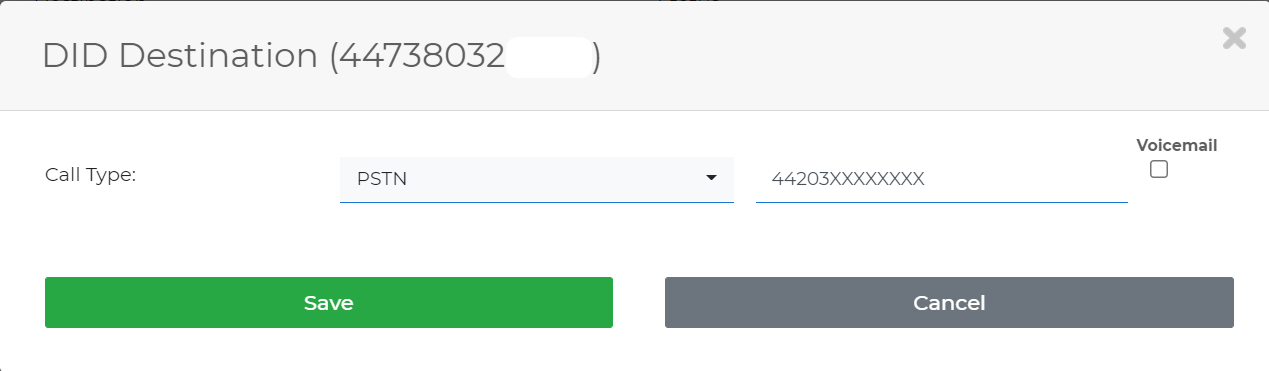
To forward a local number, click the blue arrow at the top right of the local number you purchased — a popup window with the forwarding options below will appear.
Default Call Types
| 1 | DID-LocalForwards a local number to a local extension. The field is designated for an extension number only.
|

| 2 | DID@IP/URLLets you control the header of the call (usually used for the local number itself). The field is designated for entering a customized path such as “DID@destination.” Caller ID is forwarded as well.
|

| 3 | Direct-IPForwards a local number to an IP (or a domain), along with the original caller ID of the person who dialed. The field is designated for an IP (or a domain) only.
|

| 4 | OtherForwards a local number to a custom destination with more precise options using Bridges. The example below shows a local number routed to an IP, with additional information such as Profile “Sofia” and call plan setting “default.” The last segment is the local number itself. sofia/default/1234567890@192.168.1.3 or sofia/gateway/gwname/1234567890 |
| 5 | PSTNForwards a call to a PSTN destination. Enter the PSTN number in international format (E.164). This option can be used with any local number purchased from the platform. Select “Forward To,” choose Call Type “PSTN,” and enter the destination you wish to forward the call to.
|
| 6 | SIP-DIDSimilar to DID-Local, but not intended for a user client such as Zoiper or other SIP clients. Choose SIP-DID if you’ve registered a SIP device on your end switchboard, such as FreePBX. The field is designated for a SIP device only. Note: DID-Local and SIP-DID call types can send calls to multiple destinations simultaneously, or one after another. If the destination string is 12345,78904, the system tries both destinations at once, and whichever answers first is connected. If the destination string is 12345|78904 (with a pipe), the system tries 12345 first, then 78904 if there’s no answer. Commas and pipes can also be combined in the same string as needed. |
Addons Call Types
The following options are available in Inbound as part of the inbound routing options.
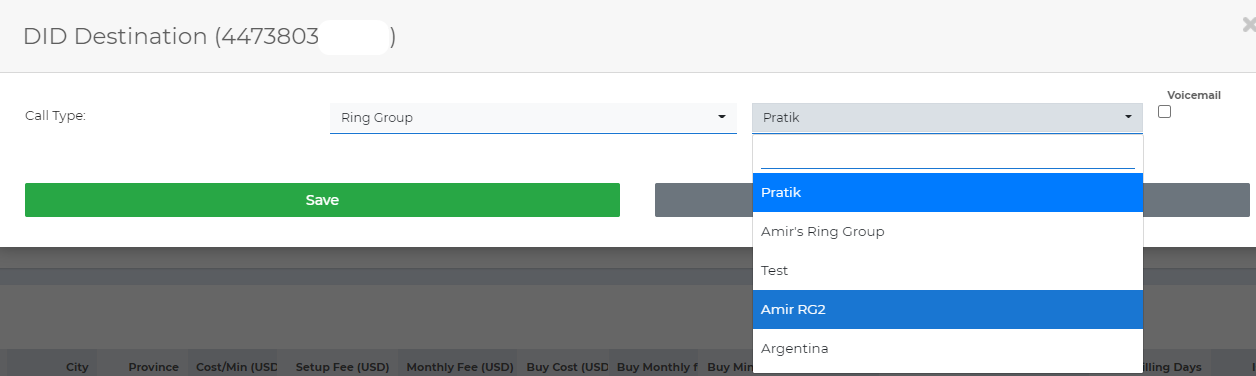
| 7 | Ring GroupUse this option to route a call to multiple destinations at once — for example, forwarding a call to two PSTN numbers simultaneously. Once you’ve created and configured a Ring Group, you can select it from the forwarding options of your purchased local number.
|
| 8 | ConferenceLets you create a conference room reachable by calling a local number forwarded to it. Callers are prompted to enter a PIN code to enter the conference room. |
| 9 | QueueUsed to manage a high volume of incoming calls to a single local number — commonly used by call centers, larger organizations, or any hotline handling many concurrent calls. How the queue works: calls are arranged in order of arrival, so the call that has been waiting longest is answered first (FIFO) — the standard pattern for “first come, first served” scenarios like customer service lines. Once an agent finishes a call and the customer hangs up, the agent’s own call also disconnects; they’ll need to redial their Agent Dial Number to log back into the queue and accept the next call. The Agent Number is set by the queue’s creator for agents to redial and rejoin the queue. To route a call to a queue, select the queue forwarding option — the system will list all previously created queues available to choose from. |
| 10 | IVRAn interactive call menu that routes calls to different destinations using internally configured keys 0–9 — commonly used in offices where each agent has their own extension (e.g. “press 1 for Tim, 2 for John, 3 for our product team”). To create an IVR, first record its greeting by dialing 1800 from your SIP device — you can then set that recording as your IVR’s welcome message. To route a call to an IVR, select the IVR option, and the system will list all IVR entities available to your account. |
| 11 | Time ConditionCreate a Time Condition from the Inbound menu if you need to set a time frame for your local numbers — for example, enabling inbound calls only from 9:00 to 17:00. |
| 12 | FOIPForwards an incoming call to an external number capable of receiving fax transmissions. |
| 13 | Access NumberSets the number as a DISA service, enabling two-stage dialing. |
| 14 | WebsocketUsed for AI systems — allows defining a call destination using the WSS protocol. A sample destination can be configured. |
| 15 | VMForwards the call to the VM (Voice Mailbox) management module. |