Auto Recharge by Threshold Feature
“Alert Threshold” automatically adds funds to your account when your balance drops below an amount you set — with the deposit amount also chosen by you.
| 1 | In the top menu, go to My Account → Alert Threshold.
|
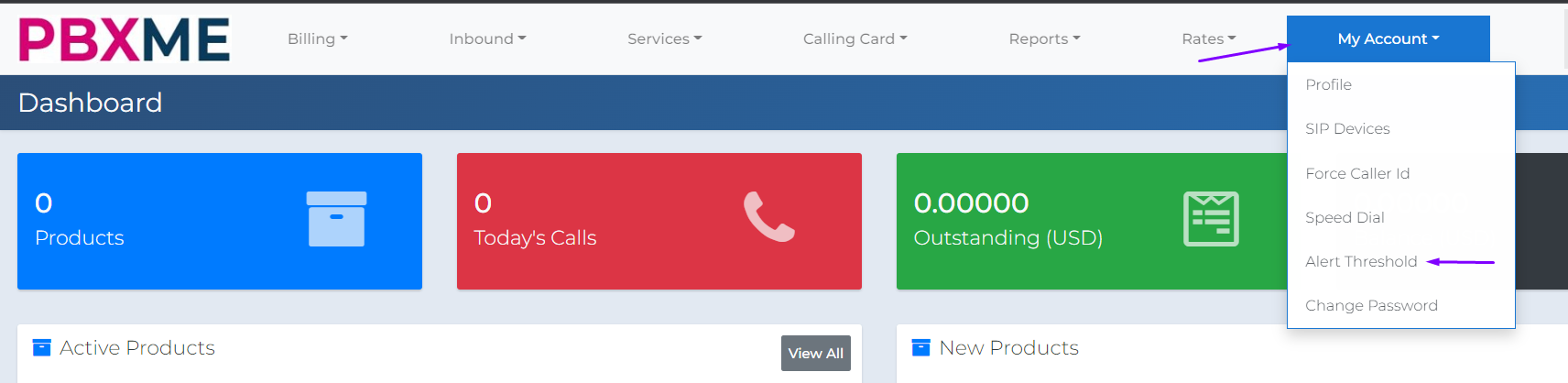
| 2 | You’ll land on the default Alert Threshold page.
|
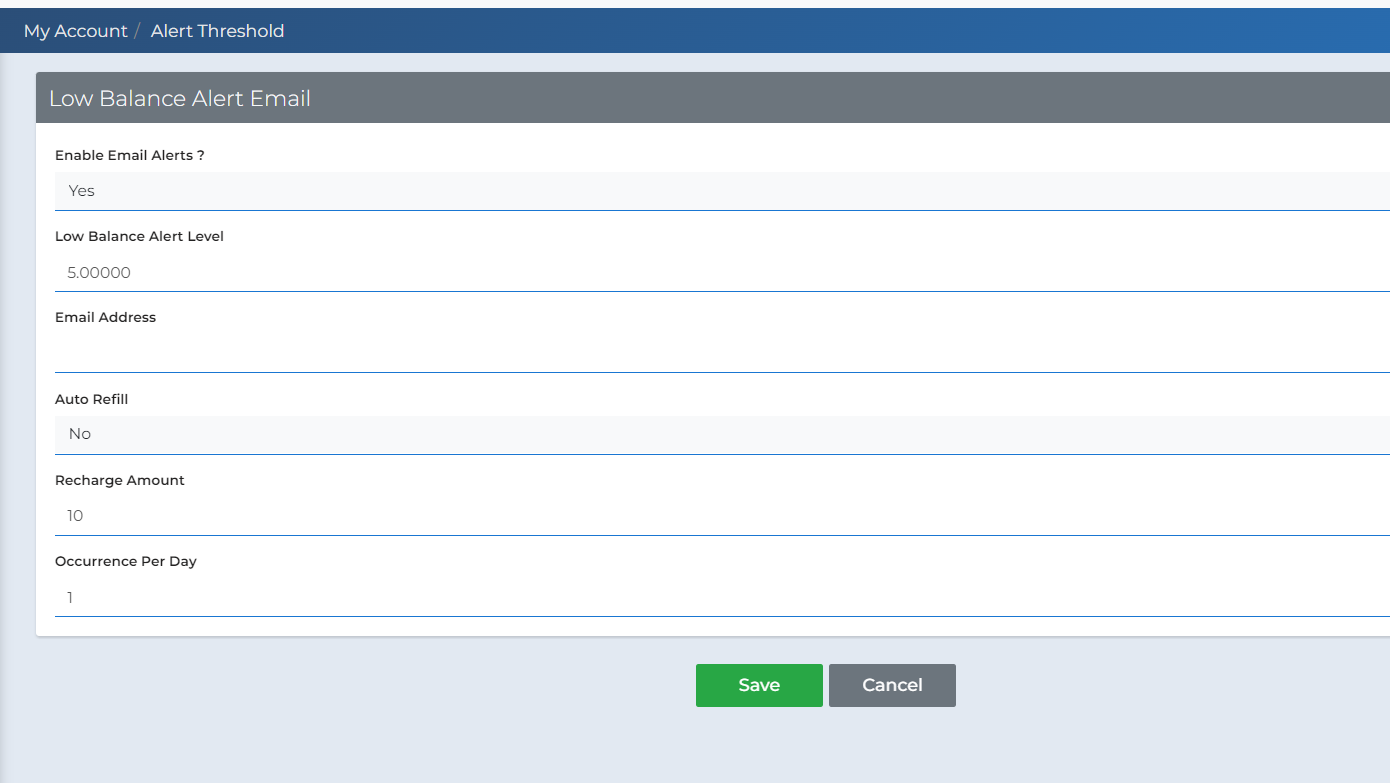
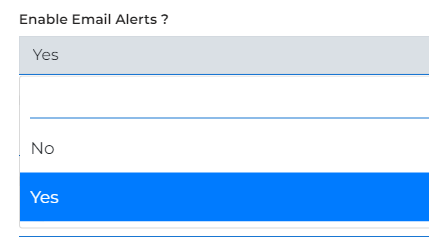
| 3 | Set Email Alerts to “Yes” to get notified whenever your balance reaches the Low Balance Notification amount.
|
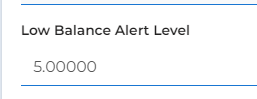
| 4 | Set the balance that will trigger the Auto Refill mechanism.
|
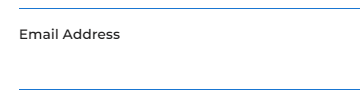
| 5 | Enter the email address where you’d like to receive notifications.
|
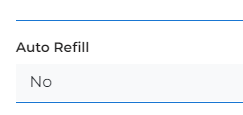
| 6 | This field defaults to “No.” To activate the Auto Refill mechanism, change it to “Yes.”
|
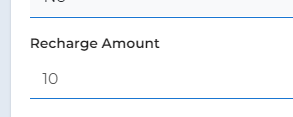
| 7 | Set the amount that will be deposited to your account whenever Auto Refill is triggered by a low balance.
|
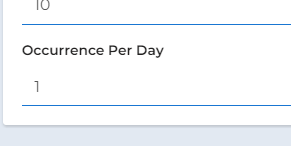
| 8 | Set how many times per day the automatic deposit can occur. We recommend keeping this at 1 deposit per day. |
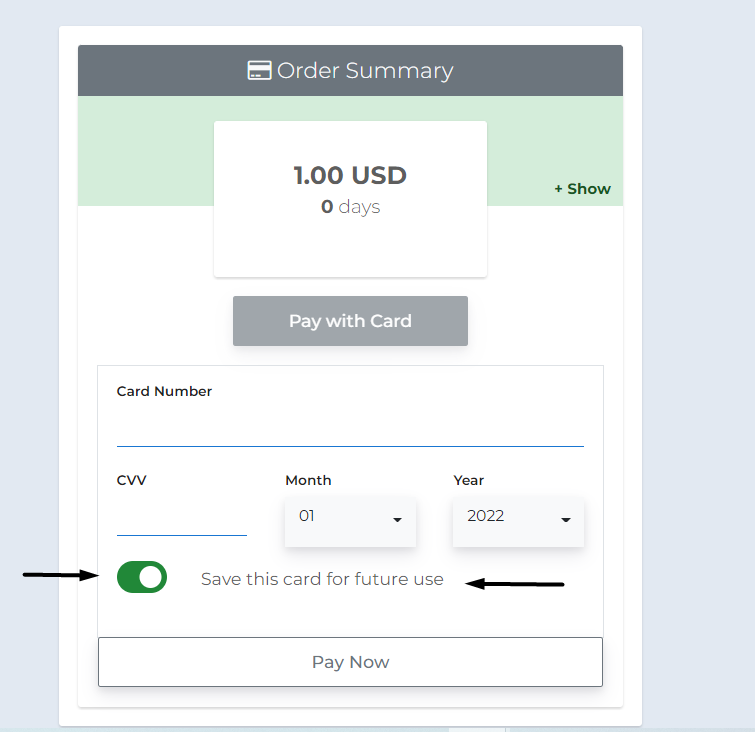
| 9 | To save a credit card for future use, follow these steps:
|
| 10 | To save your card details for future use and automatic refills, enable this option:
|