Guide to SMS Service
How to send SMS, view sent SMS history, and forward incoming SMS to a destination.
| 1 | Go to Services → SMS Service.
|
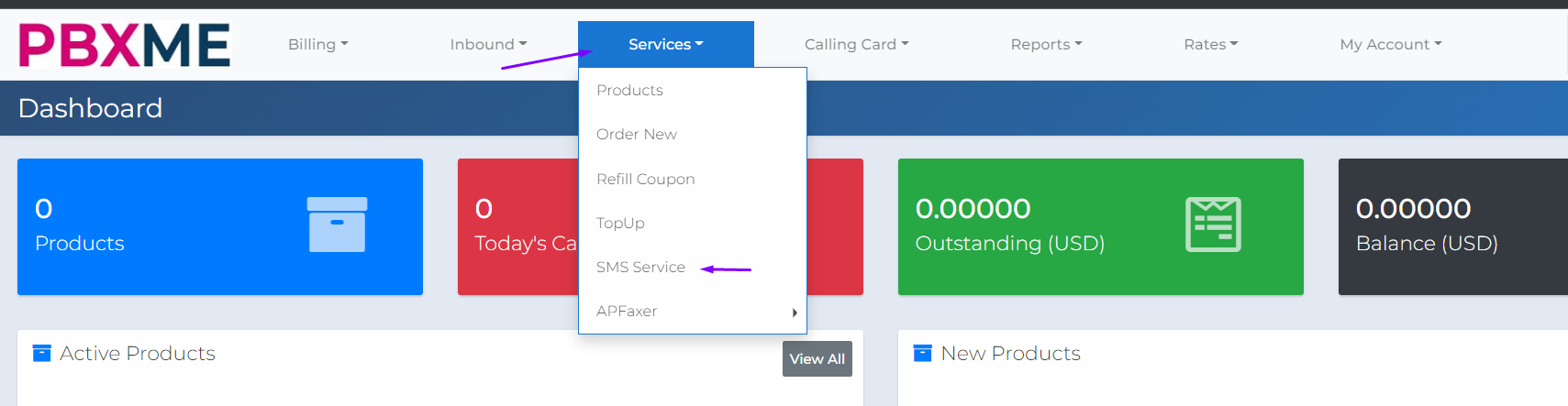
| 2 | You’ll be transferred to the SMS Service page, which has three sections in the menu on the left: Send SMS, View Sent SMS History, and Forward SMS to Destination. |
Send SMS
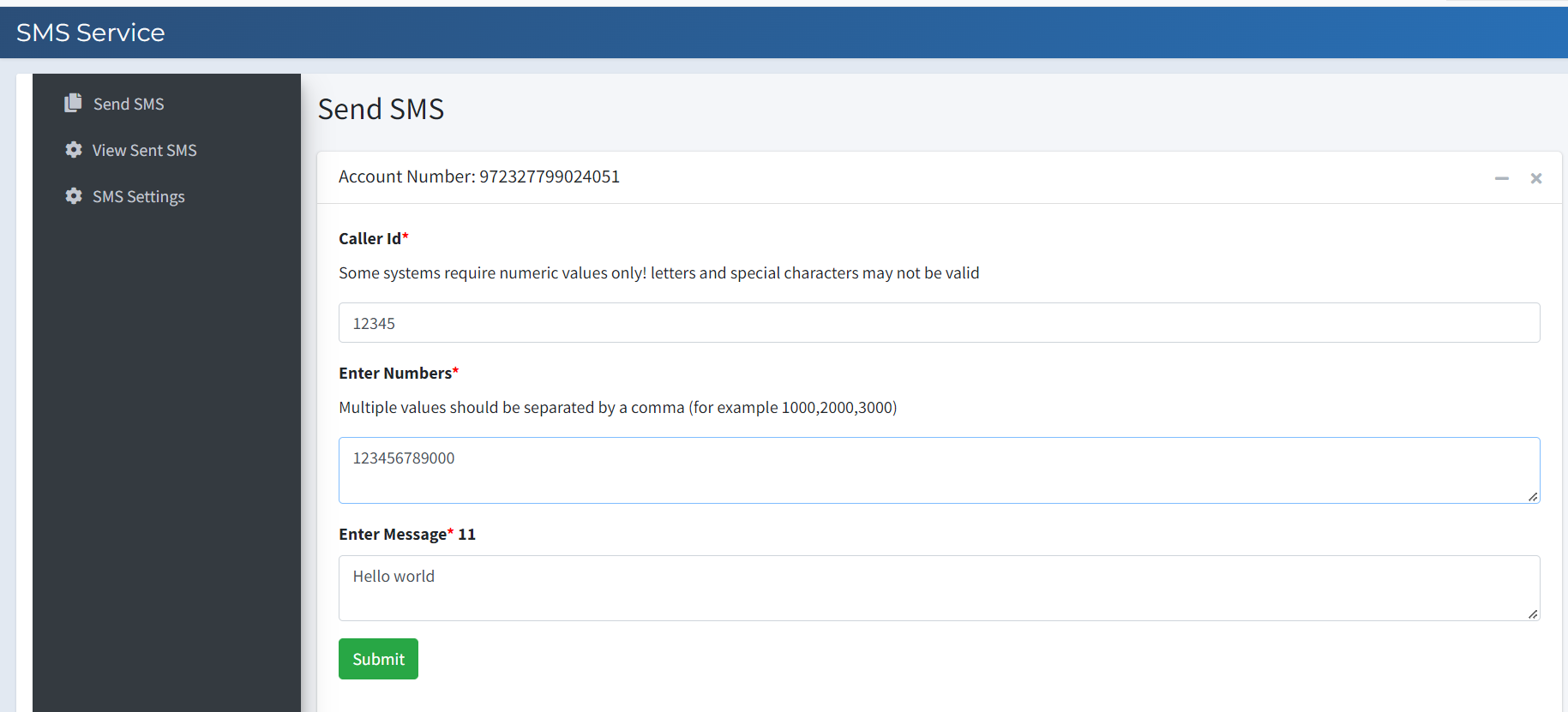
| 3 | Enter a caller ID, then enter the number or numbers you wish to send the SMS to — for more than one number, separate each with a comma. Write your message content, then click Submit.
|
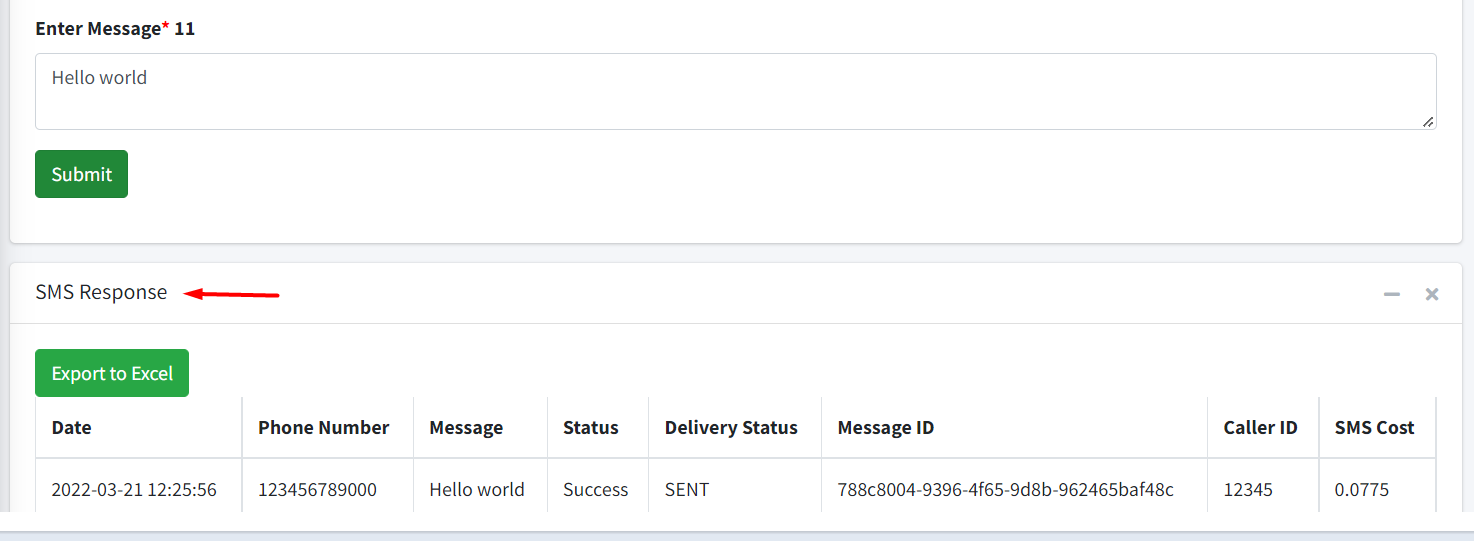
| 4 | After clicking Submit, an “SMS Response” table appears showing information about the message — cost, status, delivery status, and more.
|
View Sent SMS History
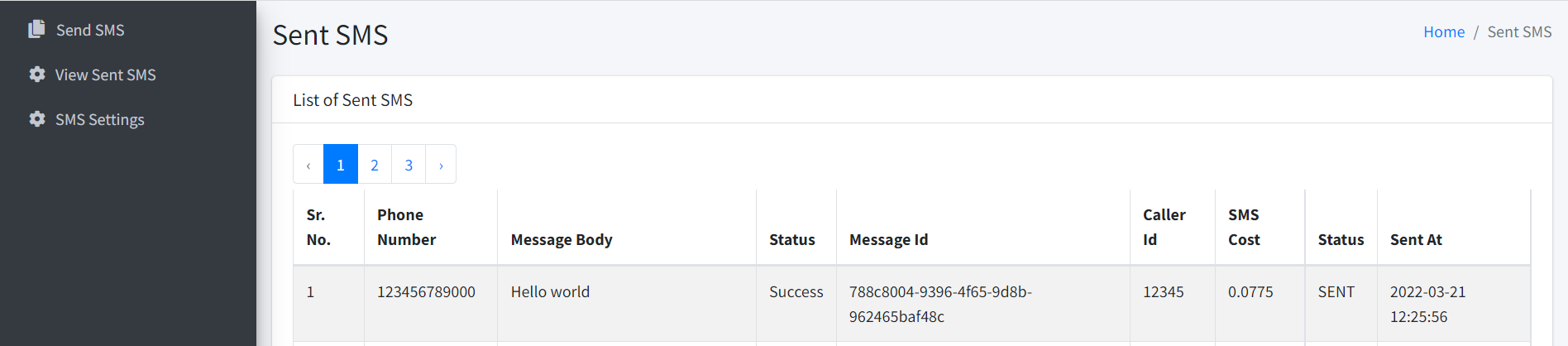
| 5 | This page shows all SMS messages sent from your account.
|
Forward SMS to Destination
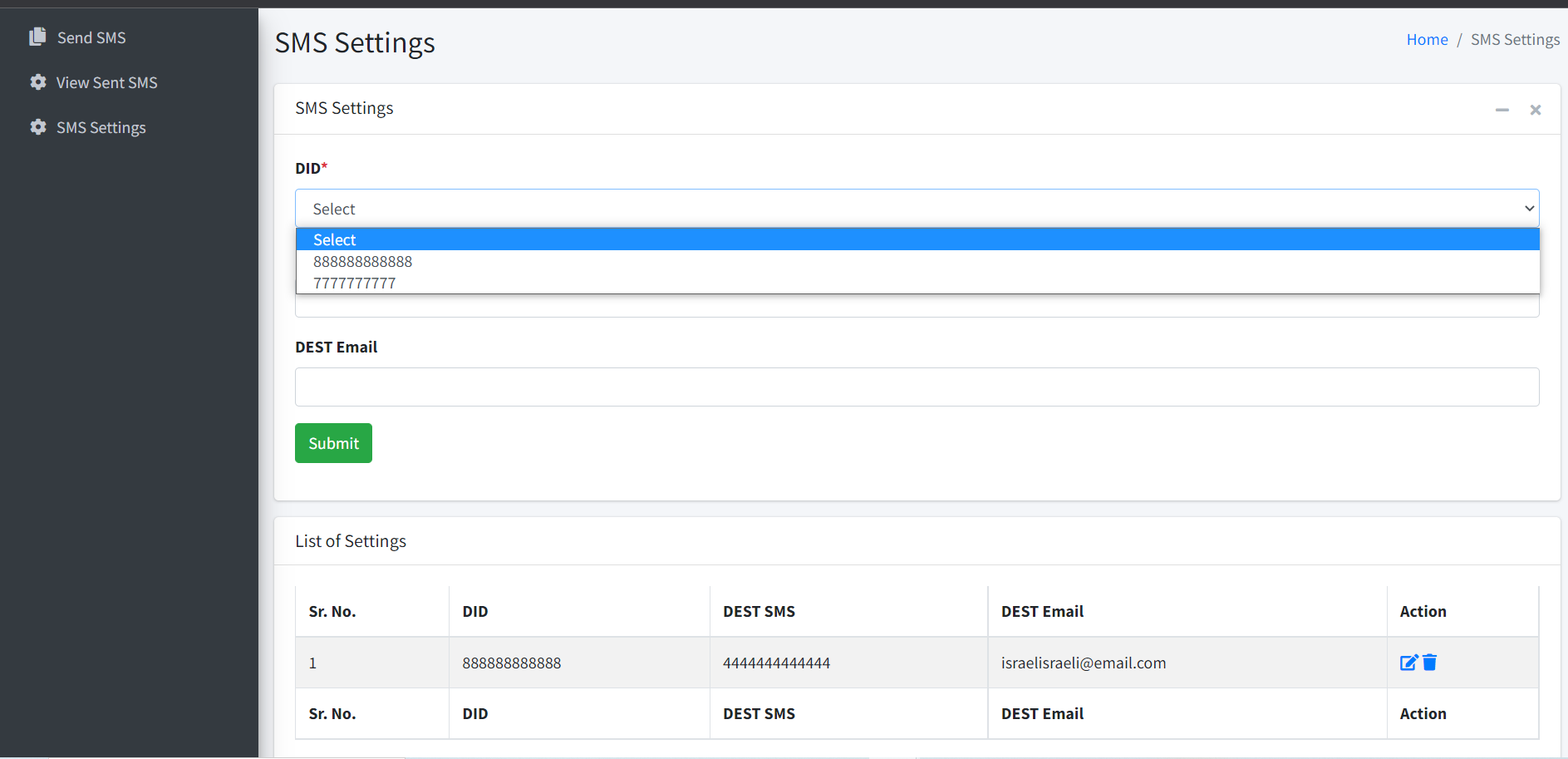
| 6 | Set where you want to receive incoming SMS messages. Select the relevant DID, then choose whether to forward it to a different number, to an email address, or to both. To set more than one number and/or email address, separate each with a comma. At the bottom of the page, you’ll see a list of your current forwarding settings, which you can edit or delete at any time.
|