Recordings Manual
The Recording feature lets you upload or create audio files for use in IVR menus, voicemail greetings, and conferences.
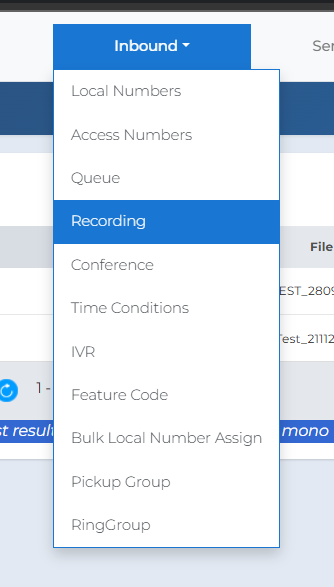
| 1 | From the top menu, go to Inbound → Recording.
|
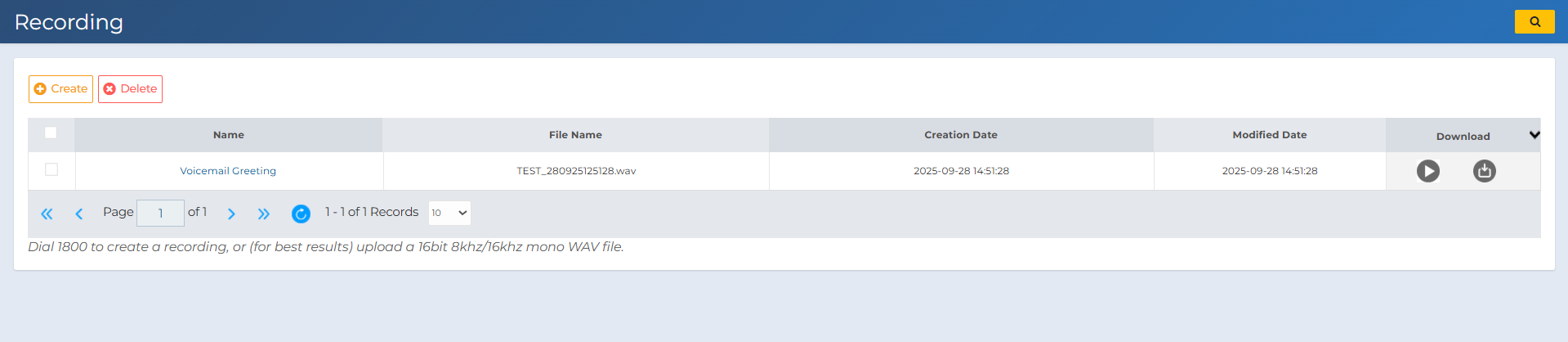
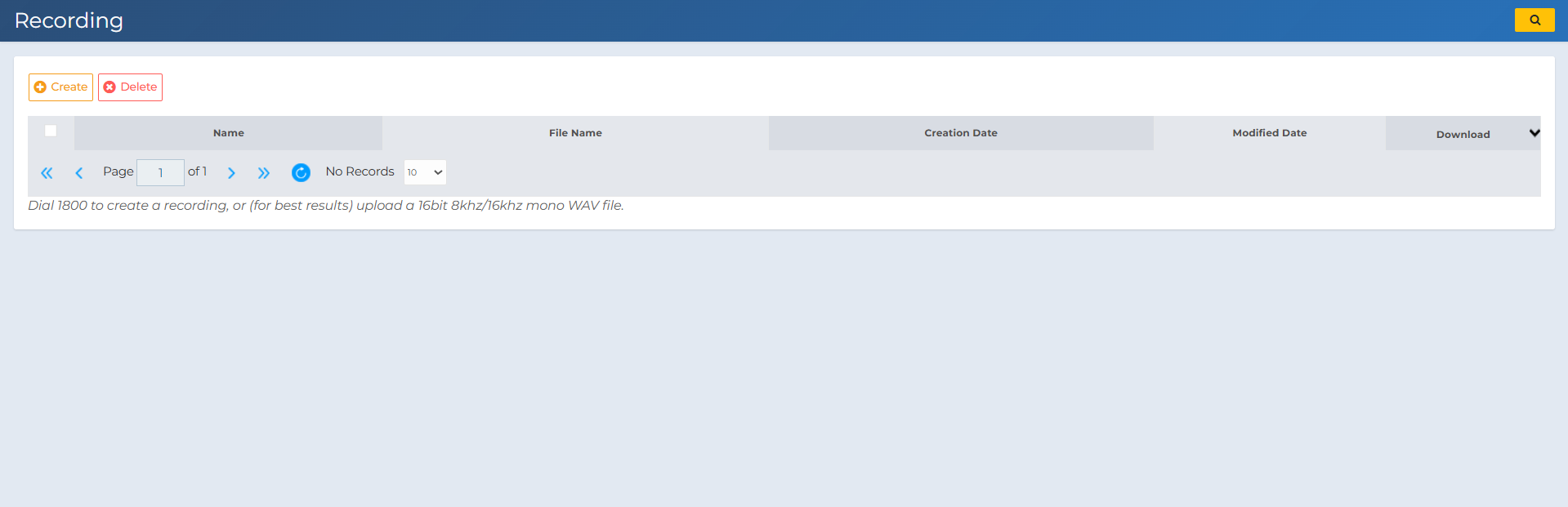
| 2 | This page shows all your uploaded recordings. Use Create to add a new recording, or Delete to remove one. You can also dial 1800 from a SIP device registered to your account to record audio directly. For best results, upload a WAV file with 16-bit depth and an 8kHz or 16kHz sample rate, in mono format.
You can check these properties under your file’s details, or in the software you use for recording.
|
| 3 | Click Create to open the recording form.
|
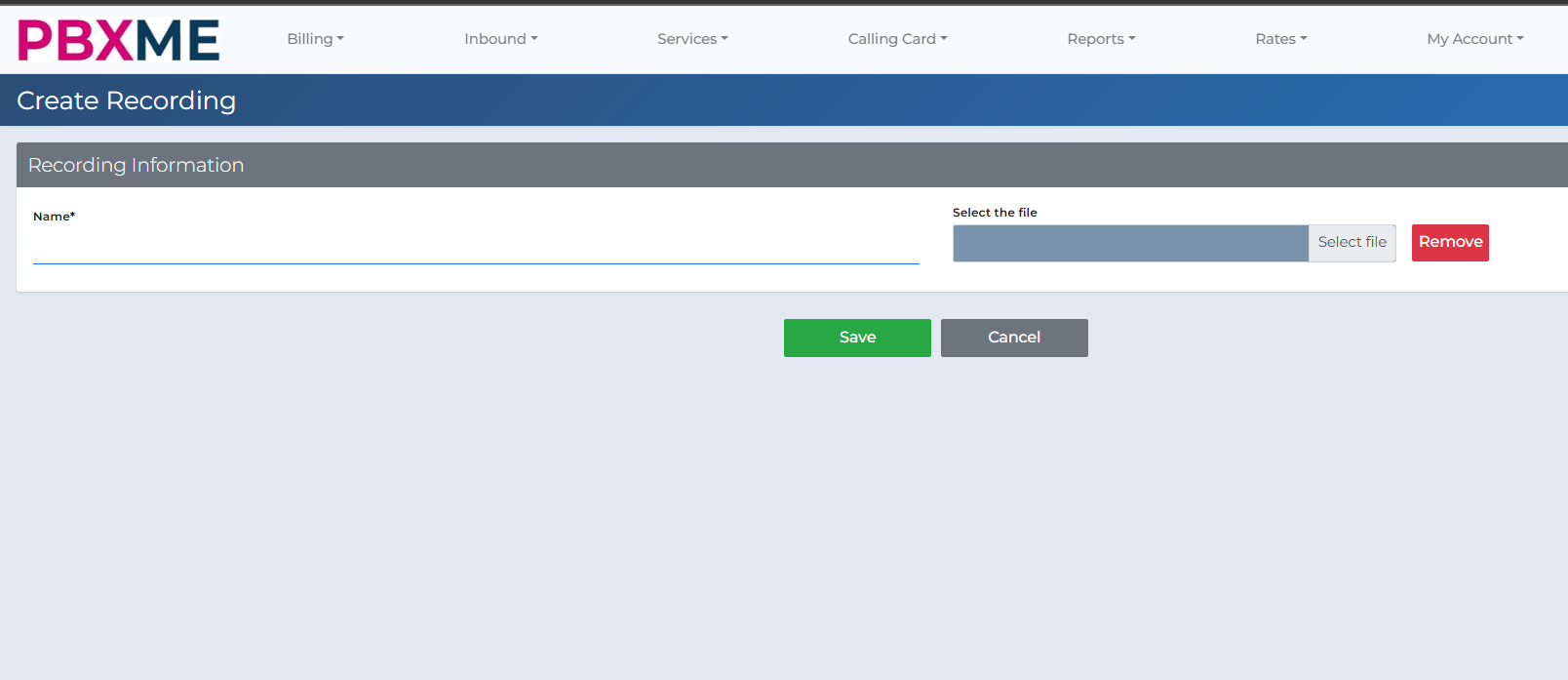
| 4 | Enter a clear name (e.g., “Voicemail Greeting”) and upload the WAV file.
|
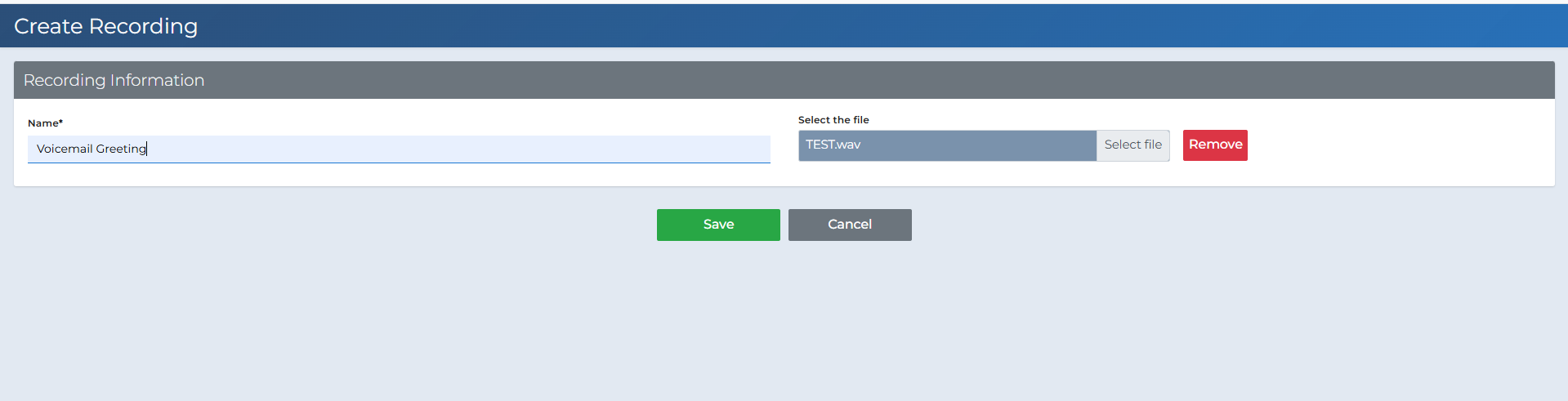
| 5 | Click Save. Your recording will appear in the Recording list, ready to be used in IVR, voicemail, or conference features.
|